- Make Life Easier - The newly released Windows 7 Professional has a number of features such as Quicklook 3 and Quickweb which allow you to access your personal information online or on your PC without even having to boot up!
- Save Time - Newer computers boasting Windows 7 and Intel Core 2 Duo processors run much faster than your old one. Some can run up to three times as fast! Even laptops have large increased power performances with new technology.
- Save Money - In an age where everyone is working to be "green" and save energy, many new computers operate using less power than the old ones. Hewlett Packard says their new desktops consume up to 55% more energy than the older ones! That means lot of savings on your power bill.
- Less Downtime - Everyone who owns an older computer knows they spend way too much time dealing with downtime. Whether youre having to call in a computer technician for repairs or rebooting or scanning files for problems, it seems like something goes wrong almost weekly. Newer computers have less problems and in turn, will allow you to be more productive.
- Special Offers - So many computer companies offer special deals when you buy a computer, you really have nothing to lose and this will only add to your new computers value. For example, at Hewlett Packard, you receive over $1,000 in free offers when your purchase a new PC and if you trade in an old computer, you can get up to $100 in cash from the companys Trade-In Program.
Looking for Computer / PC Rental information? Visit the www.rentacomputer.com PC Rental page for your short term business PC needs. Or see this link for a complete line of Personal Computer Rentals.
Five Reasons to Get New Hardware in 2010
AMD Launches Four New Quad Core AMD Opteron SE Processors
AMD today introduced four new Quad-Core AMD Opteron SE processors to help IT managers take a new approach to scaling up their datacenter in order to address demanding enterprise-computing environments. Rather than invest in traditionally large and expensive enterprise-class proprietary hardware, the new Quad-Core AMD Opteron SE processors empower businesses to affordably and easily scale up a datacenter by moving to servers that can offer enterprise-class functionality at industry-standard pricing. Quad-Core AMD Opteron processor Models 2360 SE (2.5 GHz), 2358 SE (2.4 GHz), 8360 SE (2.5 GHz), and 8358 SE (2.4 GHz) are widely available starting today.
“For many customers, the concept of ‘scaling up’ a datacenter has meant a sizeable financial investment in new hardware to gain satisfactory performance during peak workloads,” said Patrick Patla, director, Server and Workstation Business, AMD. “Today, the performance benefits of the new Quad-Core AMD Opteron SE processor built on AMD’s Direct Connect Architecture and HyperTransport™ technology can help IT managers improve application performance and scalability of memory and data intensive workloads at a fraction of the cost. This is a significant benefit for customers looking to consolidate their datacenter or those interested in moving from proprietary hardware to x86 servers for mission critical software, such as database applications.”
Whats New in AutoCAD 2011 In Detail Part 1
AutoCAD 2011 has two major updates, surface modeling, and a culmination of document tools. There really isn’t one major new documentation feature (except maybe the transparency setting that is now available,) but instead there are several additions and tweaks that separately are weak, but together make AutoCAD 2011 the best AutoCAD yet!
This is the first article in a series that will closely look at the new features. I don’t want to give a list of what’s new, but instead, I want to go in-depth and show you each new enhancement. Some of the articles will cover one new item while others will look at several. Some new features may even span more than one article. If you haven’t installed your copy of AutoCAD 2011 yet, do so now. As a CAD user of over 17 years, this latest release really has me smiling. Yes I’m an AutoCAD fanboy, but just wait. Even if you aren’t into the heavy features of AutoCAD (then shame on you for not using the tools you have paid for) you are still going to love the “little things” that are in AutoCAD 2011.
![]() |
| AutoCAD 2011 background & grid are different |
Let’s get started. One of the very first things you may notice in AutoCAD 2011 is the background color. Yet again Autodesk has seen it fit to change the color, though this time it is more subtle. It is now a dark gray. I don’t know why they insist on changing it almost every release, but they do. It’s ok really, because it is easy enough to change to whatever color you want. I have a post (click here) that describes the process. The post is for AutoCAD 2009, but the process is the same for AutoCAD 2011.
Another thing you are going to notice is that there is an actual grid when you turn the grid display feature on! Out of the box it is on. Also notice the UCS Icon, it too looks different. No more cones at the ends, just lines, one for the X Axis and one for the Y Axis. The grid is colored green on the Y Axis and red on the X Axis. This is nice because it helps them to stand out, I guess. This makes the background look more like old fashioned graph paper. Funny how over the years there have been more and more items in AutoCAD to make its drawings look more “hand drawn” than before.
And since we are on the UCS Icon, the 3D Gizmos have been tweaked a bit too. Each one is a bit more distinct so that it is easier to tell them apart. They are also more consistent with their functions. The axis colors match the UCS icon, and each gizmo looks much more different from the others. They are still easy to use, go to the Ribbon (in the 3D Modeling Workspace), Home Tab, Subobject Panel. Expand it, and go to the Gizmo Command. Select which Gizmo you want to use, now select a 3D object. The gizmo you picked should pop up. If not, select the object first, then pick the Gizmo. Keep the object selected, now pick a different Gizmo, it changes. If you need to switch between Gizmos, it’s easy. Just pick the one you want.
![]() |
| The 3D Gizmos |
One more highly visible change is in the navigation tools. By default, there is now a Navigation Bar tool. This bar has some of the most frequently used navigation tools in it. It has: Steering Wheel, View Cube, ShowMotion, Pan, Zoom, and Orbit. These items used to be in the status bar; they aren’t anymore. You can turn the navigation bar off and on if it gets in your way. You can dock the Navigation Bar on the top, bottom, left or right side of the drawing window. You can also control what navigation tools are displayed. To change the nav bar, click on the arrow at the bottom of the navigation bar. This brings up the settings dialog box. You can also control which version of each command is visible. Pick which Zoom Command you want to use, though all are available. The same goes with the orbit command as well as the other tools. The ViewCube has been enhanced to support the 2D Wireframe view style. This allows you to rotate your viewport on a two dimensional plane. One last thing, if you are using a 3D Connexion device, controls for it will show up in the Navigation Bar.
| The new Navigation Bar |
Happy Cadding
Whats New in AutoCAD 2011 Part 6
Part One Part Two Part Three Part Four Part Five Part Six
3D workspaces
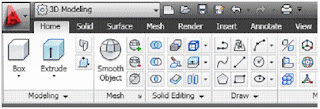
AutoCAD has custom workspaces. Out of the box, AutoCAD 2011 comes with four of them; Classic, 2D Drafting and Annotation, 3D Basics, and 3D Modeling. The 3D Basics workspace provides you with, well, the basic tools you need to create 3D models. The 3D Modeling workspace gives you access to all of the 3D tools and visualization features in AutoCAD.
3D object snaps
Object snaps have been available in AutoCAD for a long time. Now there are 3D object snaps. They work the same way, but you can toggle them on and off just as you could "regular" Osnaps. These new snaps have their own settings, status bar icon toggle, and are in the shift-right-click shortcut menu. When activated (by clicking on the 3D Osnap icon in the status bar) you can snap to a vertex, midpoint on an edge, center of a face, knot, perpendicular, and to the nearest face. The F4 key toggles 3D Osnaps on/off. Type 3DOSNAP to get to the settings window. Here you can check on/off which 3D Osnap to have active.
Solid modeling tools
These tools arent new, just improved. These tools include Extrude, Loft, Revolve, and Sweep. Youve used these tools many times, but now you can select an edge or sub-object as a profile or curve in order to create a new surface. You arent limited to using planar curves anymore. This new feature gives you much more flexibility when creating 3D objects.
Solid editing has new finishing tools. In the Solid tab on the ribbon you will find the new Fillet Edge and Chamfer Edge commands. They work just like their 2D cousins, but in three dimensions. They also have a preview feature that helps you make sure you have things set right before you edit the 3D model you are trying to fillet or chamfer.
Figure 2 (Click to enlarge): Use the Fillet Edge or Chamfer Edge commands to modify 3D objects.
Surface Modeling
AutoCAD has had 3D solids for some time. AutoCAD 2010 gave us mesh objects. AutoCAD 2011 gives us two different types of surfaces: Procedural Surfaces and NURBS. Procedural surfaces are associative and retain history. NURBS (non-uniform rational b-spline) are not associative, have no history, but they do have control vertices. These vertices give you the ability to sculpt or shape your surfaces more freely.
Surface creation tools
So much has been added to surfaces in AutoCAD 2011. You can create surfaces in different ways and you can also create three different analytic surface types: Blend, Patch, and Network. A Blend Surface creates a smooth transition between existing surfaces. It fills in the gaps, and you have choices as to how this is done. While creating a blend surface, a grip edit opens up giving you a choice between position, tangent, and curvature. Each choice makes the blend different in ways that will be obvious.
The Patch Surface tool enables you to "patch" an open, closed-edge object. It creates a new patch surface for any bounding edge that is a closed loop.
The Network Surface tool gives you the ability to create a surface through a set of curves in the U and V directions. It works similarly to the Loft command, but is more flexible. You can even choose a selection of curves that are not connected to each other. If you define a network surface with edges from existing surfaces you will get additional grips that enable you to control the continuity between the new surface and the old surfaces.
The SURFOFFSET command (also found in the Create panel of the Surface tab in the ribbon) will let you offset a surface. It creates a new surface that is "parallel" to the old surface at a set distance.
Surface editing tools
AutoCAD 2011 gives us many new tools that allow us to edit these new surfaces we can create. They will be familiar to you. Use the SURFFILLET command to fillet between the edges of two surfaces. I told you it would be familiar! There is also a Trim tool (these can both be found in the Edit panel on the ribbon). The Trim tool will cut a hole in a surface based on the shape of another object. Draw the trimming edge shape, start the Trim tool, pick your trimming edge and then your shape (just like the trim command) and it will cut out a hole in your surface that is shaped like your trimming object. If you made a mistake, you can use the UNTRIM command. The Extend tool allows you to extend a surfaces edge to another object. The Sculpt tool (SURFSCULPT) lets you create a new object based on the enclosed volume of multiple intersecting surfaces. The area must be enclosed for it to work.
Analysis tools
AutoCAD now has a few analysis tools that can help you understand your objects continuity between different surfaces that make up a shape. They are found in the Analysis panel in the Surface tab on the ribbon. The Zebra tool lets you look at a surface continuity by projecting parallel lines on the surface. The Curvature tool displays a color gradient on the surface letting you know where there are high (and low) area of curvature. The Draft tool also displays a gradient color on the surface that enables you to figure out if a model has enough draft between a part and its mold. The displays for these tools are controlled with the Analysis Options dialog box. Get there in the Analysis panel.
Figure 3 (Click to enlarge): The analysis tools in AutoCAD can give you a different visual display of your surfaces.
Mesh Modeling
The Mesh Modeling tools have gotten a bit better in AutoCAD 2011. They provide a more flexibility and give more control. Visit the Mesh tab for these new tools. Use the Merge Mesh tool to merge two or more adjacent faces into a single face. This will make for one larger face and could make things easier to edit. If you want to extrude a face, for example, but the area is currently three or four faces large, merge them into one and have at it.
The Close Hole tool will fill in the gaps between mesh objects by selecting the edges of a surrounding mesh object. A new surface will fill the empty space between the selected edges.
The Collapse Face or Edge tool lets you force vertices of a mesh face to converge at the center of a selected face, or edge. The Spin Triangle Face tool will change the shape of a face by rotating the edge of a triangular mesh face.
Conclusion
AutoCAD 2011 has added many new tools and features to its 3D arsenal. AutoCAD users can now create 3D solids, meshes, and surfaces. Many editing tools have been added as well as creation tools. AutoCAD’s 3D abilities have grown tremendously over the past few releases.
This wraps up our look at the new features in AutoCAD 2011. It was a long journey but this release had many new features. I could have stretched it out even further, but this release is half over! It wont be long before we start talking about the next release of AutoCAD I’m sure.
(Reprinted with permission from Autodesk User Group International - AUGI)
HP Announces new HP Z220 Workstations and EliteBook Mobile Workstations
![]() |
| HP Z220 Workstations |
Both Z220 workstation models offer an array of processor choices from the new Intel Xeon processor E3-1200 v2 family and third-generation Intel Core processor family. They also offer a selection of mid-range to high-end discrete graphics cards from NIVIDIA and AMD as well as up to 32GB of 1600 DDR3 memory in either ECC or non-ECC formats.
![]() |
| HP EliteBook 8570w |
These EliteBooks come in three models: the 8470w, the 8570w, and the 8770w. The 8770w offers the highest performance specs and comes with a 17.3 inch display. The 8570w has a 15.6 inch display while the 8470w has a 14 inch display. Each of these EliteBooks comes in a magnesium aluminum chassis, a radial-brushed display cover, glass touchpads and aluminum-alloy hinges. They meet the tough military standards (MIL-STD-810G) for dust, vibration, shock, altitude, drop, high temperature, low temperature, and temperature shock. They should be quite durable on the job site or in the field.
PRICING
Quad-core setups of the HP Z220 start at $699 making it a lower end workstation and more affordable. The HP EliteBook 8770w, 8570w, 8470w Mobile Workstations start at $1,699, $1,449, and $1,329
Respectively and are expected to be available at the end of June 2012.
www.hp.com/zworkstations
Here is a link to the Press Release.